
How to use Aviunion's Calendar Search
Aviunion's Calendar Search helps you find the best-priced dates when your travel plans are flexible. Instead of guessing a single departure and return date, you search a date window and trip-length range and see prices for many combinations at once. This guide walks you through the flow from search to trip details.
1. Open Calendar Search and Enter Your Trip
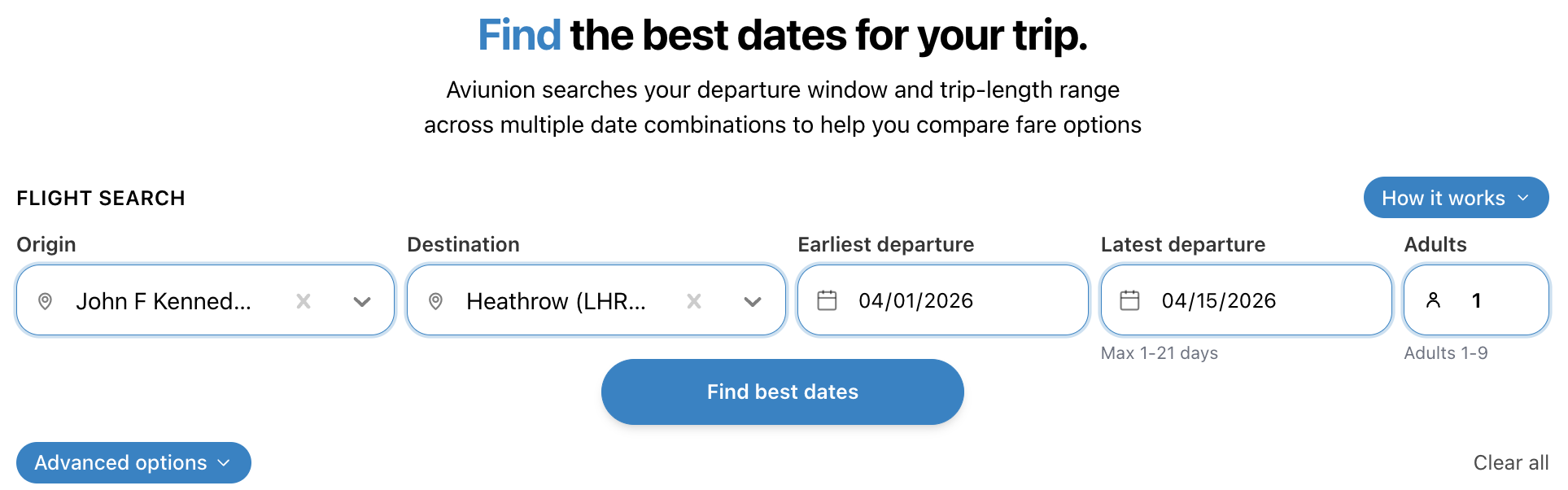
Go to Calendar Search and enter your origin, destination, and when you can travel. Pick an earliest and latest departure date that matches your real flexibility, and set the number of adults. Optionally use Advanced options to narrow trip length (e.g. min and max nights). When the form is valid, click Find best dates.
2. Review the Price Grid
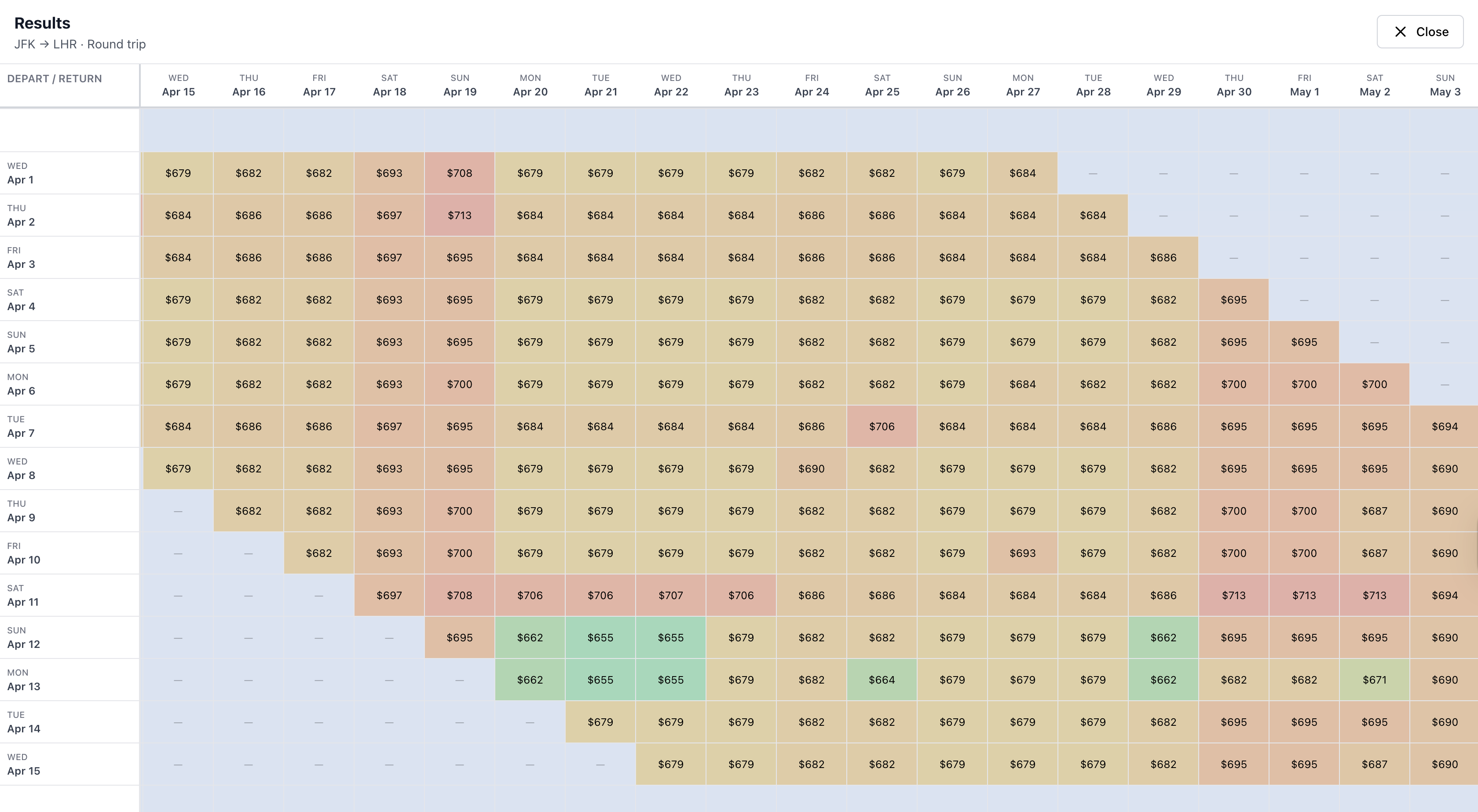
After the search runs, you see a calendar-style grid. Rows are departure dates and columns are return dates; each cell shows the price for that date pair (or a dash if no result). Use the Lowest fares list and filters to focus on the options that matter. Grid and List views let you switch between the calendar and a list of cheap combinations.
3. Pick a Date Pair and Confirm
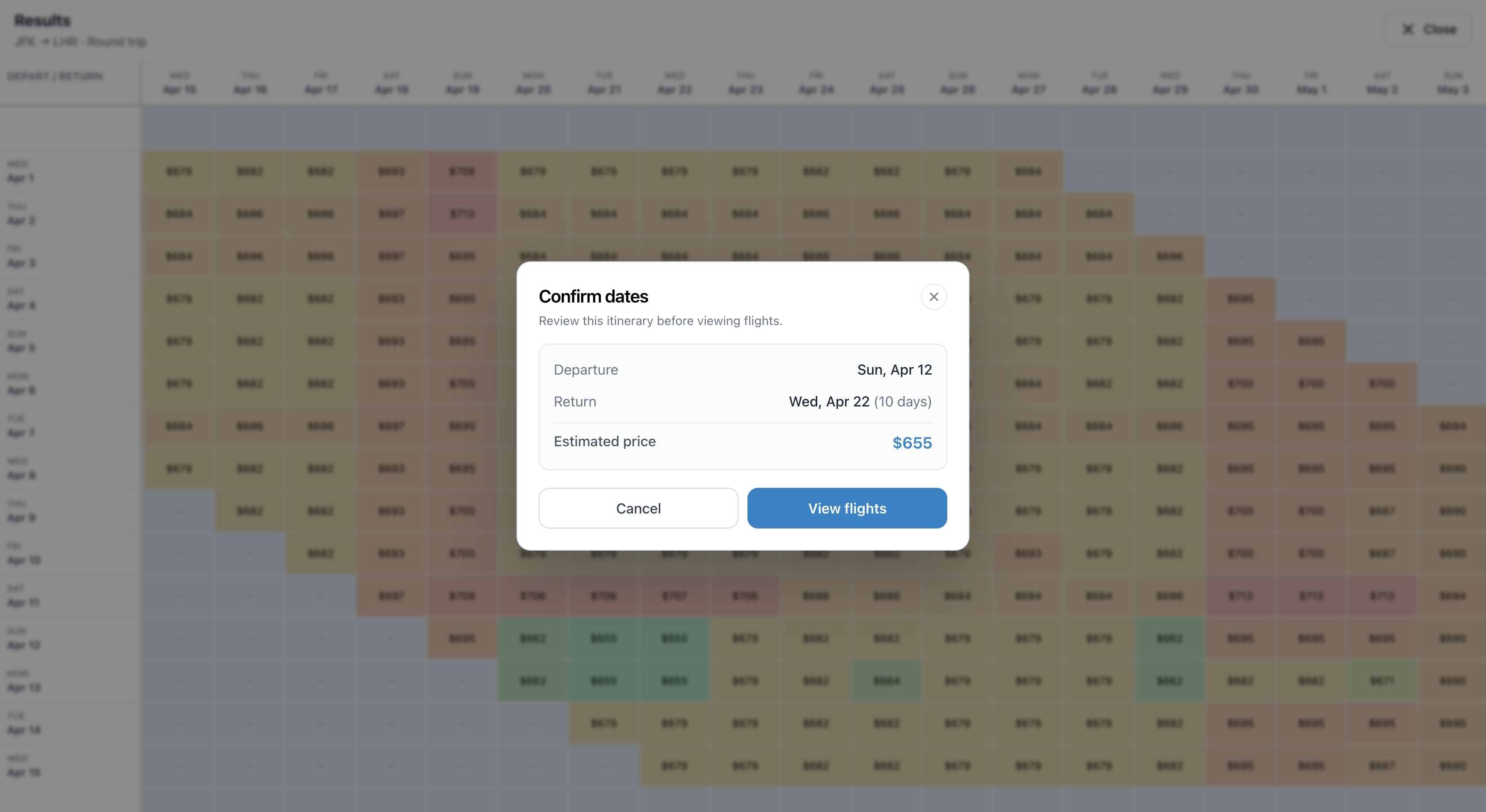
Click a cell in the grid (or an option in the lowest-fares list) to select that departure and return date. A confirmation popup shows the itinerary and estimated price. Review it and click View flights to see specific outbound and return flights for that pair.
4. Select Your Departing Flight
On the departing-flights page you see outbound options for your chosen date. Use the stops filter, airline dropdown, and sort order to find the flight you want. Click Select flight on one option, then click Continue to Return Flights to move on.

5. Select Your Returning Flight
On the returning-flights page you see options for the return leg. Your chosen departing flight is summarized at the top. Pick a return flight the same way: use filters and sort, then click Select flight. When ready, click Continue to Booking to see the full trip.

6. View Trip Details and Book
The trip-details page shows your full round trip: both legs, times, and total price. Review everything, then use the Book buttons to open the airline or partner site in a new tab and complete your booking there. Aviunion does not handle payments; it helps you compare and choose, then sends you to the provider to book.
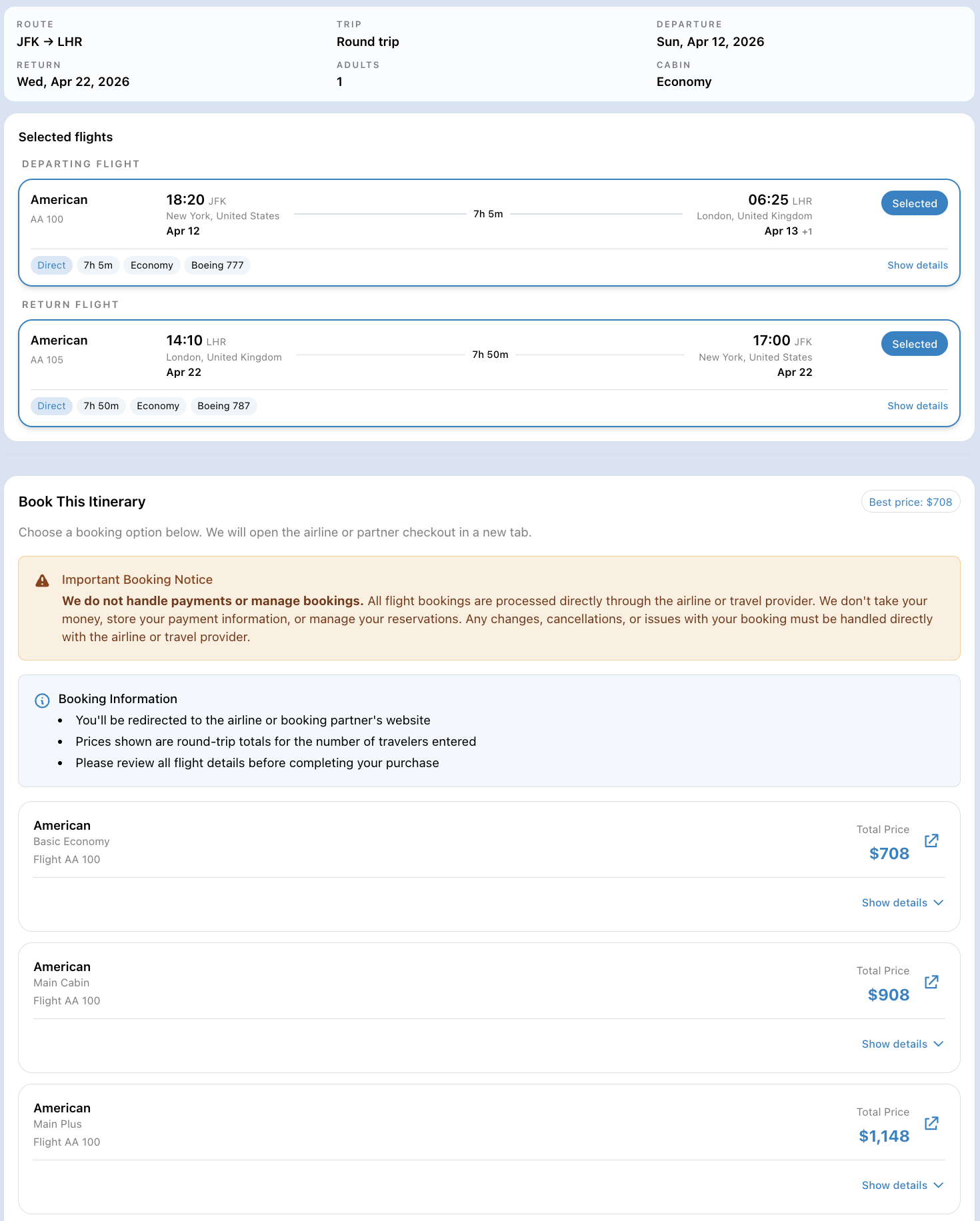
That is the full Calendar Search flow: set your window, scan the grid, pick a date pair, choose departing and returning flights, and review the trip before booking.